Set up GluScout on your Mac
GluScout shows the glucose reading from your own Nightscout server. Setup takes a name, the web address of your site and, if your site is protected, an access token.
What you need
To watch Nightscout on Mac without keeping a browser tab open, you need a Mac with macOS 14.6 or later and your own Nightscout server. GluScout does not provide glucose data by itself.
- The web address of your site, for example https://your-nightscout.example
- An access token, only if your site is protected. If your site is public, leave that field empty.
Add your first Profile
-
Install GluScout from the Mac App Store. On first run, Settings opens on “Add Profile”. Later, click the menu bar icon and choose “Open Settings…”, or press ⌘,.
Sample data -
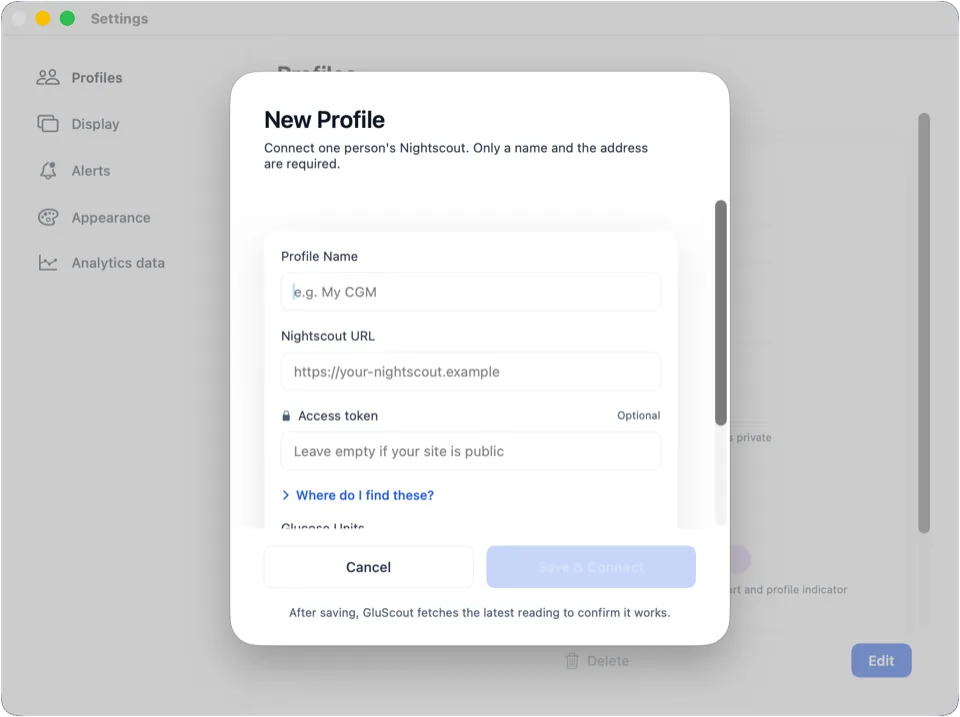
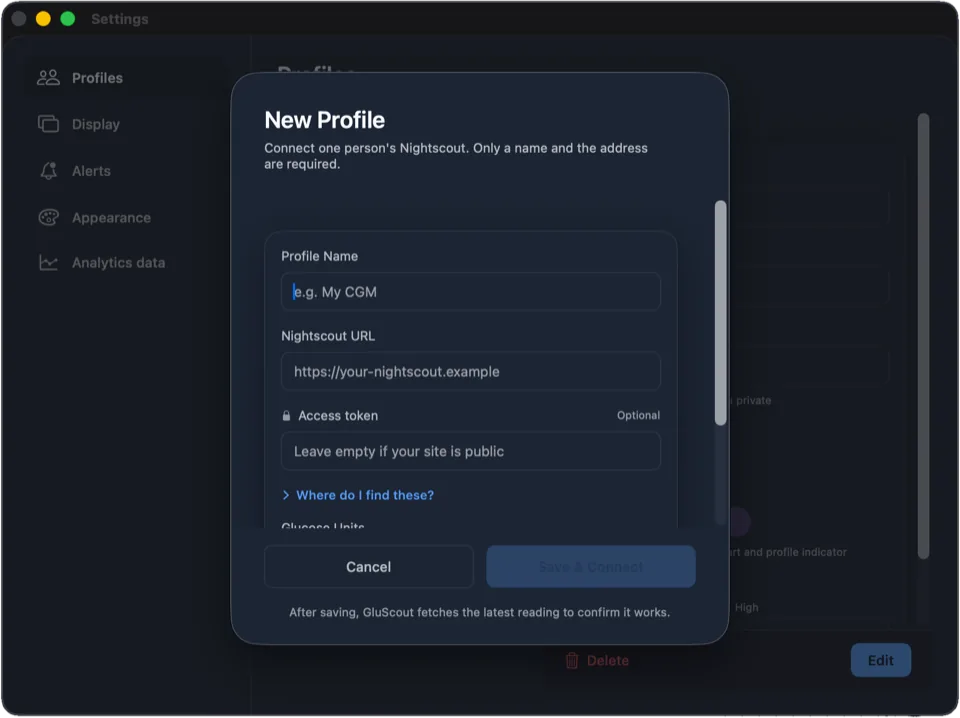
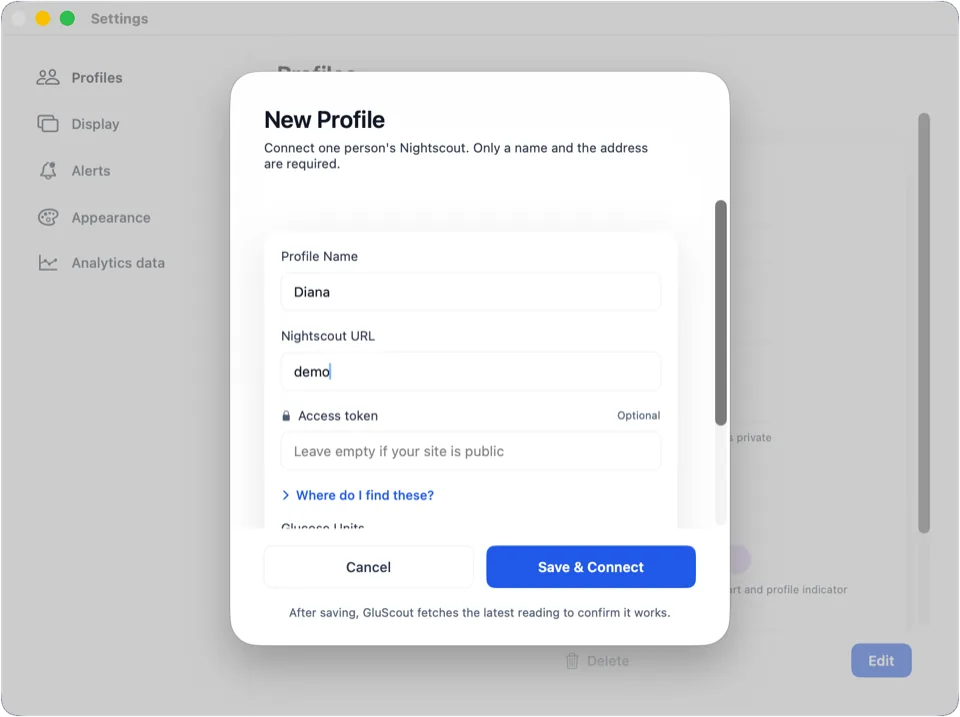
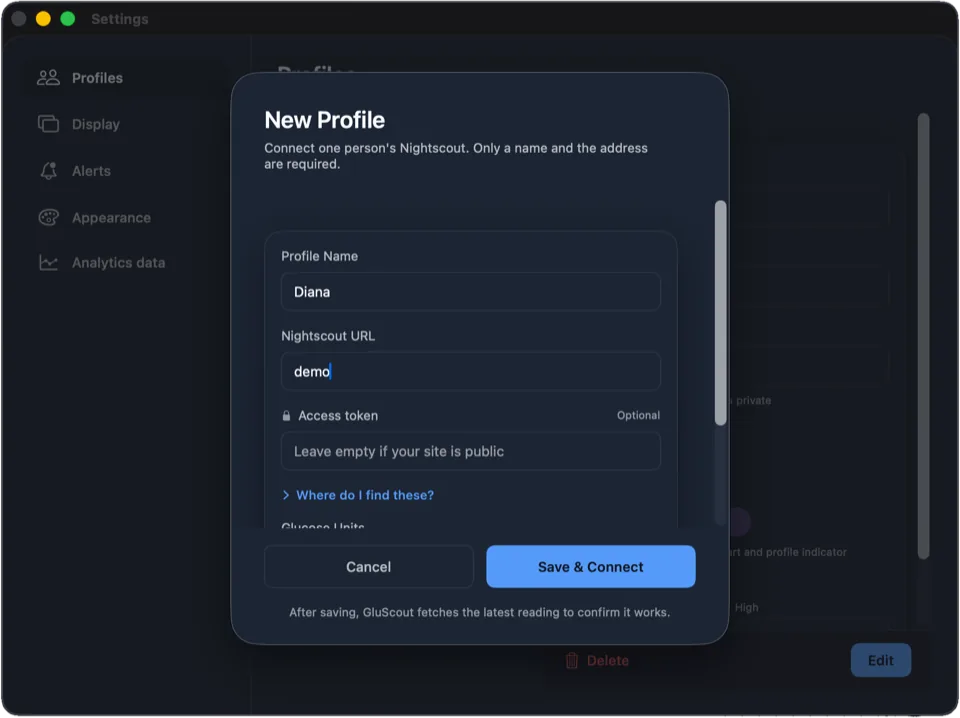
Enter a “Profile Name”, your “Nightscout URL” and, if your site is protected, the “Access token”. “Where do I find these?” explains both: the address is the web address of your Nightscout site, and the access token is made in Nightscout’s Admin Tools.
GluScout recommends an https address.
Sample data -
Pick your “Glucose Units” and click “Save & Connect”. GluScout fetches the latest reading to confirm the connection works, then shows “Connected” and your first reading. Click “Done”. “Test Connection” checks the address first, if you want that.
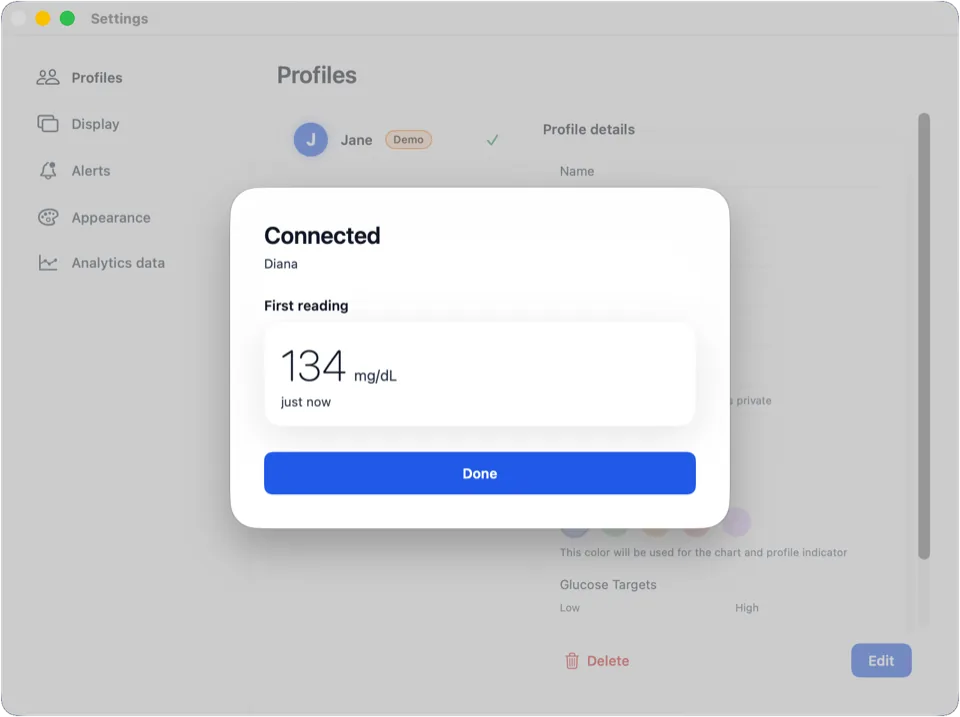
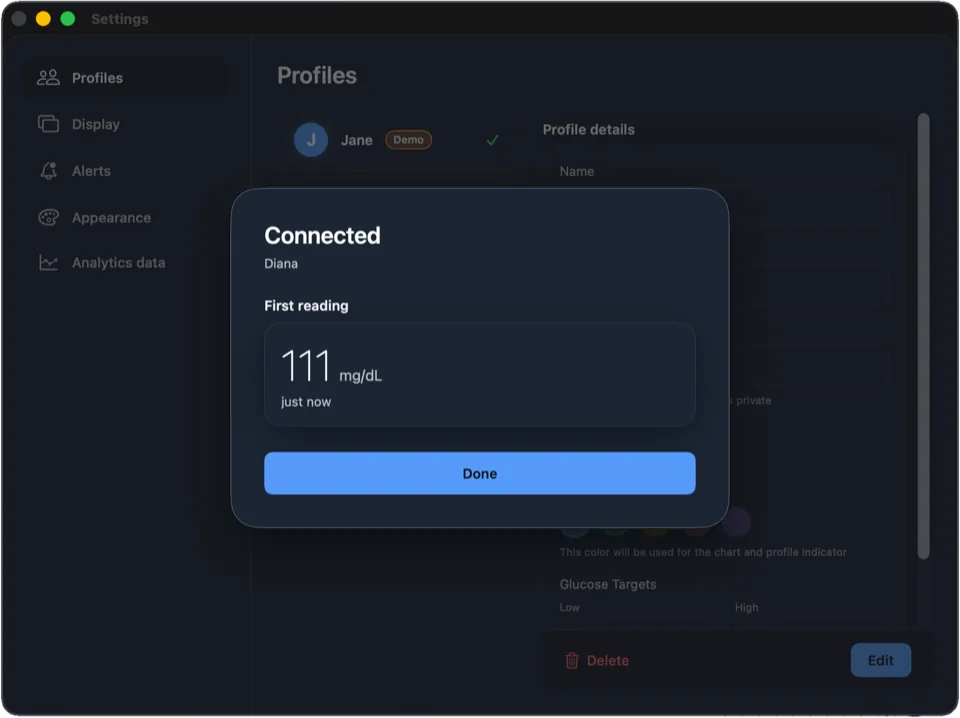
Sample data
Add more Profiles
One Profile per person, each with its own address and token. Open Settings, choose “Profiles” and add the next one the same way.
- Each Profile has its own colour, glucose targets, alerts and menubar label
- One card per person in the popover; click a card to open its Analytics
mg/dL or mmol/L
You pick “Glucose Units” for each Profile when you add it, and you can change them later in the Profile’s settings. GluScout prints the unit next to every value.
Alerts and notifications
Alerts are off by default, for every Profile. To turn them on, open Settings, choose “Alerts”, select a Profile and turn on “Enable Alerts”.
The kinds are low, high, urgent low, urgent high and stale data. Each notification shows who, the value with its unit, the trend and the age.
When macOS asks whether GluScout may send notifications, allow it. If you block them, macOS will not ask again: allow GluScout in System Settings > Notifications. “Open System Settings” in the Alerts settings takes you there.
Alerts are a convenience, not a safety-critical system. Keep using the alarms of your approved CGM, receiver or pump.
If something looks wrong
GluScout cannot reach the address
The popover shows a one-line message, “Can’t reach Nightscout”. Check the address of the Profile in Settings under “Profiles” and use “Test Connection”. If the token is wrong, GluScout says Nightscout rejected it. Check the “Access token” field then.
A reading looks old
Readings older than 15 minutes are dimmed and show their age. GluScout shows what your Nightscout holds, so check that your own server is still receiving readings. The stale-data alert reports when no new reading arrived.
Analytics says “Limited data”
“Limited data” appears when a range holds fewer than 14 days of readings. Analytics fetches the last month first. “Low coverage” appears when sensor data covers less than 70% of the days. What each Analytics view shows explains both.
Nothing here fits? Support has more answers and my email.
Important
GluScout is for information only. It is not a medical device and gives no medical advice. Always verify readings with your approved devices. Not for emergencies. Discuss any changes with your care team.